
How to Build Good Online Security Habits That Actually Stick

Most account breaches don't start with a genius hacker cracking encryption. They start with a reused password from a 2019 breach dump, a text message you clicked at 7am while half asleep, or a "security question" whose answer is sitting on your Facebook profile. The attacks are boring. That is exactly why they work.
This guide walks through the habits that actually reduce your risk, based on the current NIST SP 800-63B Revision 4 guidance (published August 2025), FIDO Alliance passkey data from 2026, and the way credential-stuffing and phishing kits operate in the real world right now. No fear-mongering, no 40-character password requirements you'll forget in a week. Just what to change and why it matters.
Why Most Security Advice Fails in Practice
Here's the thing nobody wants to admit: the old advice made people less secure, not more. Forced password rotation every 90 days, mandatory special characters, secret questions about your first pet. All of it looked good on a compliance checklist and all of it pushed real users toward predictable patterns.
When you force someone to change "Summer2024!" every quarter, they don't generate a new random password. They change it to "Summer2024!!" or "Fall2024!". Attackers know this. Password-cracking dictionaries are built around exactly this kind of predictable incrementing.
NIST caught up to this reality in SP 800-63B Revision 4. The new baseline drops mandatory complexity rules and forced resets, and instead prioritizes length, breach screening, and multi-factor authentication. That shift matters because it changes what "good habits" should actually look like.
The New Password Baseline (What Changed and Why)
Under the current NIST guidance, the rules are simpler than what most people were taught:
| Rule | Old Guidance | Current Guidance (SP 800-63B Rev 4) |
|---|---|---|
| Minimum length | 8 characters | 15+ characters if password is the only factor, 8+ if paired with MFA |
| Composition | Mixed case, numbers, symbols required | No composition rules required |
| Rotation | Every 60-90 days | Only after a confirmed compromise |
| Maximum length | Often capped at 16-20 characters | Systems should accept at least 64 characters, including spaces |
| Security questions | Common fallback | Discouraged as a recovery method |
| Screening | Rarely done | Passwords should be checked against known breach lists |
The practical takeaway: a long, random passphrase beats a short "complex" password every time, and you should stop changing passwords on a calendar. Change them when something is actually wrong.
A weak password isn't "password1" anymore in most people's minds. It's "Tr0ub4dor&3", which looks strong and is actually a well-known example of a password that's short enough to fall to brute force despite the symbols. Length beats cleverness.
Password Managers: Stop Doing This in Your Head
You cannot memorize 200 unique 15+ character passwords, and you shouldn't try. This is what password managers exist for. The core mechanic is simple: one strong master password (or passkey) unlocks an encrypted vault that generates and stores a unique random string for every site.
| Tool | Type | Passkey Support | Cross-Platform | Notable Trait |
|---|---|---|---|---|
| Bitwarden | Cloud + self-host option | Yes | Yes | Open source, strong free tier |
| 1Password | Cloud | Yes | Yes | Polished UX, family/team sharing |
| Apple Passwords | Cloud (iCloud Keychain) | Yes | iOS/macOS + limited Windows | Built in, tightly integrated |
| Google Password Manager | Cloud | Yes | Chrome/Android + limited iOS | Free, tied to Google account |
| KeePassXC | Local file | No native sync | Yes (manual sync) | Fully offline, no cloud dependency |
Pick one, not several. Splitting credentials across three different managers is how people end up locked out of accounts trying to remember which vault has which password.
Setting Up Breach Monitoring
Most password managers now check your stored credentials against known breach databases automatically. If yours doesn't, you can check manually using Have I Been Pwned's API from the terminal:
curl -s "https://api.pwnedpasswords.com/range/5BAA6" | head -5This uses k-anonymity, so you only send the first 5 characters of a SHA-1 hash of the password, never the password itself. Most password managers wire this same check into their vault audit feature. Run it, and if anything shows as compromised, rotate that one password immediately.
Passkeys: The Actual Replacement for Passwords
Passkeys are not a stronger password. They're a different mechanism entirely, and understanding the mechanics explains why they resist phishing in a way passwords structurally cannot.
When you register a passkey with a site, your device generates a cryptographic key pair. The private key never leaves your device (or your hardware security key's secure chip). The site only ever stores the public key. When you log in, the site sends a challenge, your device signs it with the private key using Face ID, Touch ID, or Windows Hello, and the site verifies the signature against the public key it already has.
There is no shared secret to steal. A phishing site can trick you into typing a password, but it cannot trick your device into signing a challenge for a domain that doesn't match the one the passkey was registered to. That domain-binding is baked into the WebAuthn standard, not bolted on as a policy.
As of 2026, adoption has moved well past the experimental phase. FIDO Alliance research put global passkey usage at roughly 5 billion active passkeys, with 75% of people having enabled a passkey on at least one account and 49% using them regularly when available. That's a real shift in how login actually works day to day, not a future promise.
Setting Up a Passkey (Windows Example)
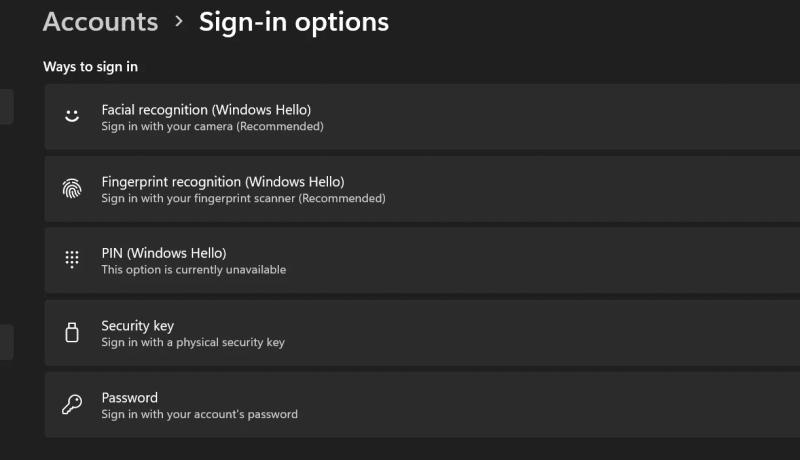
- Open Settings > Accounts > Sign-in options on Windows 11.
- Under Windows Hello, set up a PIN, fingerprint, or facial recognition if you haven't already. This becomes the local unlock method for any passkey stored on the device.
- Go to the account settings of the service you want to secure (GitHub, Google, Microsoft account, etc.) and look for Security keys or Passkeys in the sign-in section.
- Choose "Add a passkey" and select This device when prompted. Windows Hello will ask for your PIN or biometric to confirm.
- Repeat for your other high-value accounts: email, banking, and your password manager itself if it supports it.
Don't disable password login entirely until you've confirmed the passkey works and you have a backup recovery method set up. Recovery is still the weakest link in passwordless systems, and getting locked out of your own email account is not a good afternoon.
Multi-Factor Authentication: Not All Factors Are Equal
If you can't move to passkeys everywhere yet, MFA is the next best layer, but the method you choose matters more than most people realize.
| Method | Phishing Resistant | Common Failure Mode |
|---|---|---|
| SMS one-time code | No | SIM swapping, message interception |
| Authenticator app (TOTP) | Partial | Can be phished via real-time relay attacks |
| Push notification | Partial | MFA fatigue, users approve without checking |
| Hardware security key (FIDO2) | Yes | Physical loss, needs a backup key |
| Passkey | Yes | Recovery process if device is lost |
SMS-based codes are better than no second factor, but they're the weakest option available. SIM-swap attacks, where an attacker convinces your carrier to port your number to their SIM, are well-documented and don't require touching your device at all. If your bank or email only offers SMS, use it, but move to an authenticator app or hardware key wherever you have the choice.
Step-by-Step: A Weekend Security Audit
This is the actual order to work through, not a random checklist:
- Pick and install one password manager. Import existing passwords from your browser, then set the master password to a long passphrase (4-6 random words work well and clear the 15-character bar easily).
- Run the built-in breach check. Every major password manager has an audit or "watchtower" feature. Rotate anything flagged as reused or compromised first, before touching anything else.
- Enable passkeys or hardware MFA on your top five accounts. Email, password manager, banking, primary cloud storage, and whatever holds your most sensitive data. Email goes first because it's the recovery path for everything else.
- Switch remaining MFA from SMS to an authenticator app where the service allows it. Look for "Authenticator app" or "TOTP" in security settings, not just "Two-factor authentication."
- Remove old security questions or replace answers with random strings stored in your password manager's notes field, since real answers are often guessable from public information.
What NOT to Do
People reach for these fixes first, and they don't hold up:
- Adding a number or symbol to the end of an old password. "Password1" to "Password1!" defeats nothing. Cracking tools already account for this pattern.
- Using the same "strong" password with small site-specific tweaks (like
MyP@ssw0rd_gmailvsMyP@ssw0rd_amazon). One breach exposes the pattern, and every other account falls with it. - Relying on your browser's built-in password storage as your only manager without ever checking it for reused or breached credentials. It stores passwords, but most people never open the audit view.
- Turning on SMS 2FA and calling it done. It blocks casual credential stuffing but not a targeted SIM-swap attempt.
- Writing passwords in a plain text file "just for now." This becomes permanent, and it's the first thing malware scans for on an infected machine.
Verification: How to Know Your Setup Actually Worked
Don't just assume the changes stuck. Confirm them:
- Log out and back into your top five accounts to confirm passkey or hardware-key login prompts appear instead of a password field.
- Check your password manager's health/audit dashboard and confirm the reused and weak password count reads zero, or close to it.
- Search your email address at a breach-checking service like Have I Been Pwned and confirm none of the listed breaches involve a password you're still using anywhere.
- Try logging into one account from a new browser profile to confirm MFA actually triggers rather than silently letting you through on a remembered device.
Wrapping Up
None of this requires memorizing anything or becoming a security expert. Get a password manager, move your important accounts to passkeys or hardware MFA, and stop treating SMS codes as a finish line instead of a floor. Do the weekend audit once, and it's a five-minute maintenance check after that.